Build Your First Website with Claude Code
Quick Setup Reference Guide for Windows
Plan in Chat. Build in Code.
Keep this guide open while following the video.
Claude updates frequently. Always check Anthropic’s current Windows setup instructions before starting: https://code.claude.com/docs/en/desktop-quickstart
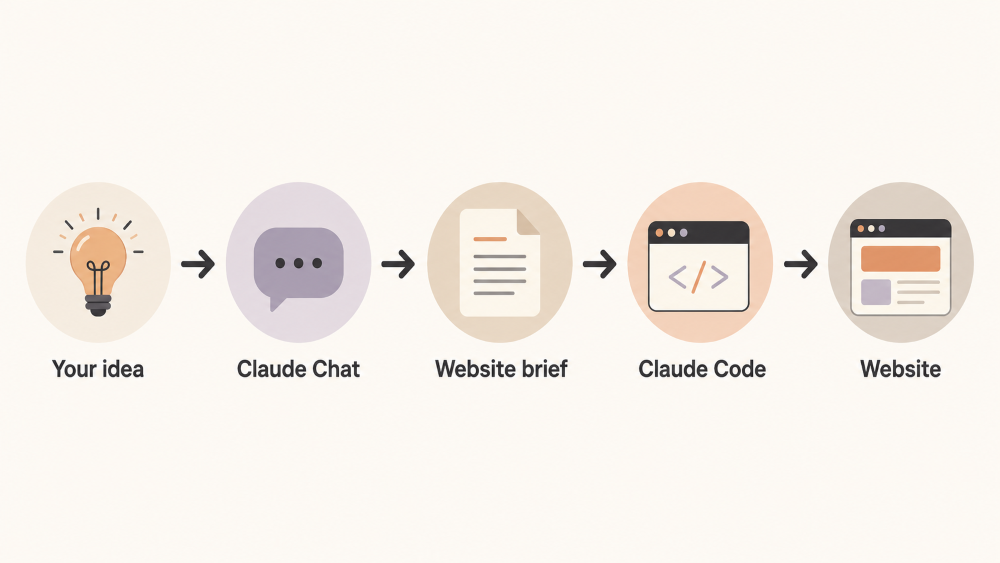
The Simple Workflow
Know the Three Important Parts
🧠 Claude Chat: Helps you think, plan and write the website content. It does not change files on your computer.
🛠️ Claude Code: Reads your project files, builds the website and makes approved changes.
📁 Project Folder: The dedicated Windows folder Claude Code uses for this website. Keep all relevant website files inside it, and review any request to access something elsewhere.
1. Prepare Your Windows PC
Before opening Claude, ensure you have:
☐ A Claude plan that includes Claude Code.
☐ The latest Claude Desktop app installed and open.
☐ Git for Windows installed if recommended by Anthropic’s current setup guide. You do not need to learn Git for this tutorial.
Create Your Safe Workspace:
Do not give Claude access to your whole computer. Create one dedicated folder for this website.
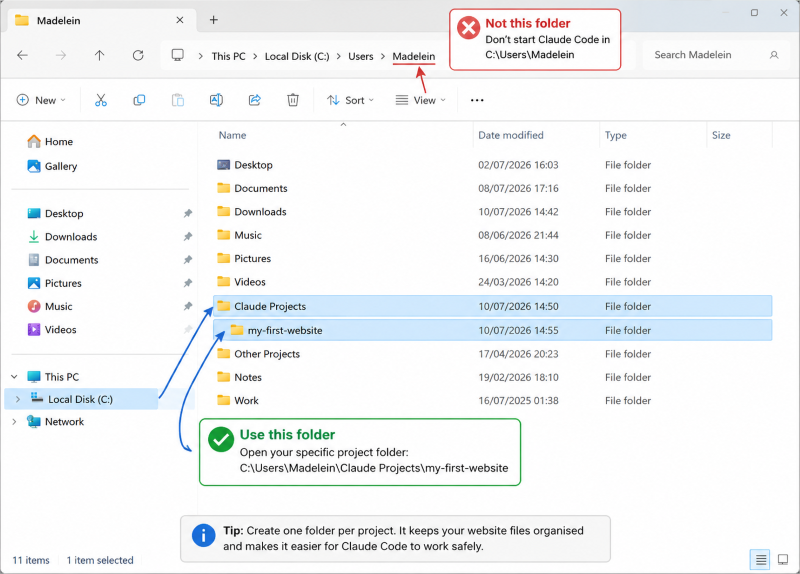
Open only the specific my-first-website folder as your project folder—not your full Documents folder, user folder or C:\ drive.
Inside Your Website Folder, Add
Your logo and any approved images. You can also create images with an AI image generator or a tool such as Canva.
A simple text file, such as my-links.txt, containing your booking URL, email address and social links.
Any existing wording or business information you want Claude to use.
Do not place passwords, API keys, confidential client information or unrelated private files inside this folder.
2. Plan the Website in Claude Chat
Toggle to the Home tab in Claude Desktop and go to "Chat". Do not toggle to Code yet.
Paste this prompt, filling in your business idea in the second line:
Act as a senior website strategist, UX copywriter and beginner-friendly web project planner.
I want to build a simple one-page website for a [briefly describe your business, e.g., career coaching practice for mid-level managers].
I have no coding or technical background.
Ask me the simple questions you need to fully understand my business, audience, and goals so you can write a complete website brief.
Do not ask me to choose programming languages, frameworks, or technical architecture.
Do not invent qualifications, testimonials, prices, or business claims. Mark anything missing as a placeholder.
Once you have the answers, create a complete website brief including the page structure, draft wording for each section, and visual direction. Format it clearly so I can copy it.
Optional: Add Visual Inspiration
You can help Claude understand the style you want by sharing links or screenshots of websites you like.
Good places to look:
Lapa Ninja — best for practical landing-page examples and simple one-page layouts.
Dribbble — useful for hero sections, typography, cards and call-to-action ideas. Many designs are concepts rather than complete working websites.
Awwwards — useful for studying premium layouts, visual hierarchy and motion. Some examples may be too complex for a simple beginner website.
You can then add this to your Claude Chat conversation:
I would like the website to take visual inspiration from these examples. Please use them only for general layout, spacing, typography and design direction. Do not copy wording, branding or distinctive design elements.
You can also ask an AI research tool, such as Perplexity, to help you find relevant examples.
Example prompt:
Provide five strong career coach website examples I can study for page structure, layout and visual direction. Prioritise simple one-page or service-based websites that would be realistic for a beginner to build. Explain what is useful about each example.
Tip: Choose only two or three examples. Too many references can make the design direction less clear.
How to Answer Claude’s Questions
Talk to Claude naturally. Short answers are fine.
When you do not know an answer, say:
I’m not sure. What do you recommend?
Before accepting Claude’s final brief, check that it has not invented anything.
Before Moving On
Download or copy Claude’s final brief into a plain text file named:
website-brief.txt
Save this file directly inside your website project folder.
The brief now travels with the project, so Claude Code can read it without needing your full Chat conversation.
3. Ask Claude Code to Plan the Build
Now, toggle to Code.
Set the following options:
Environment: Select Local.
Project folder: Select your dedicated website folder, such as my-first-website.
Permission mode: Select Plan.
Plan mode allows Claude to inspect the project and propose an approach without changing your files before you approve the plan.
Paste the following prompt.
Review website-brief.txt and the other files in this project folder.
I have no coding background.
Tell me:
What you understand about the website.
The simplest way to build it.
Which files you will create.
Any permissions you will need from me.
Explain unfamiliar terms in plain English.
Do not create, edit, or delete files yet.
Wait for my approval.
Read Claude's plan. It should make sense to you. If it sounds too complicated, ask Claude to simplify it before moving on.
4. Approve the build
When the plan looks correct, click Approve.
You may also see options to review or reject the plan before continuing.
After you approve the plan, Claude begins building the website. It may ask for permission before creating files or running actions.
Read each permission request and approve it only when it matches the agreed plan.
5. Preview and Review the Website
Claude may start a local preview and review the website automatically.
Check the website as a visitor would:
☐ Is it immediately clear who the website is for?
☐ Is the offer or service easy to understand?
☐ Do the images display correctly?
☐ Do the buttons and links work?
☐ Are the business name and contact details correct?
☐ Has Claude invented any claims or information?
☐ Does the page remain readable on a narrow screen?
If the Built-In Preview Does Not Display Properly
If images or other elements do not display correctly in Claude’s built-in preview, ask Claude:
How can I preview this website properly in my browser?
Claude may provide a local URL.
Copy the URL and open it in Chrome or Edge outside the Claude Desktop app.
This does not publish the website. The local URL is still running only on your computer.
What “Local” Means
A local website is running or saved on your computer.
It has not yet been:
published online
connected to a domain
made publicly available
Other people cannot visit it until you deploy or upload the website files to a hosting service.
⚠️ Safety Reminder
Never select your entire Documents folder, user folder or C:\ drive as the project folder.
Never place passwords, API keys or confidential client files inside the project folder.
Read permission requests before approving them.
Reject or question anything that does not match the approved plan.
Check Anthropic’s current documentation when the interface or setup differs from this guide.
What comes next
You now have a working website saved locally in your project folder.
The next video will show you how to publish this folder and connect a custom domain so other people can visit the website online.
Optional next step
Claude Code can help you build quickly, but it cannot decide whether the website supports the right income idea or business model for you.
TrueLane™ helps you explore directions that fit how you naturally prefer to work, decide and create.
Disclaimer: This beginner guide is educational. Claude’s interface and requirements may change, so check Anthropic’s official documentation before starting or approving unfamiliar actions.
 Powered By LeadCreator