Claude Code Website Launch Checklist
Take your simple website from local folder to Hostinger
After using this checklist, you will be able to prepare a safe upload copy, place the correct files in Hostinger, connect your domain while protecting existing email, test the live website and keep a rollback copy.
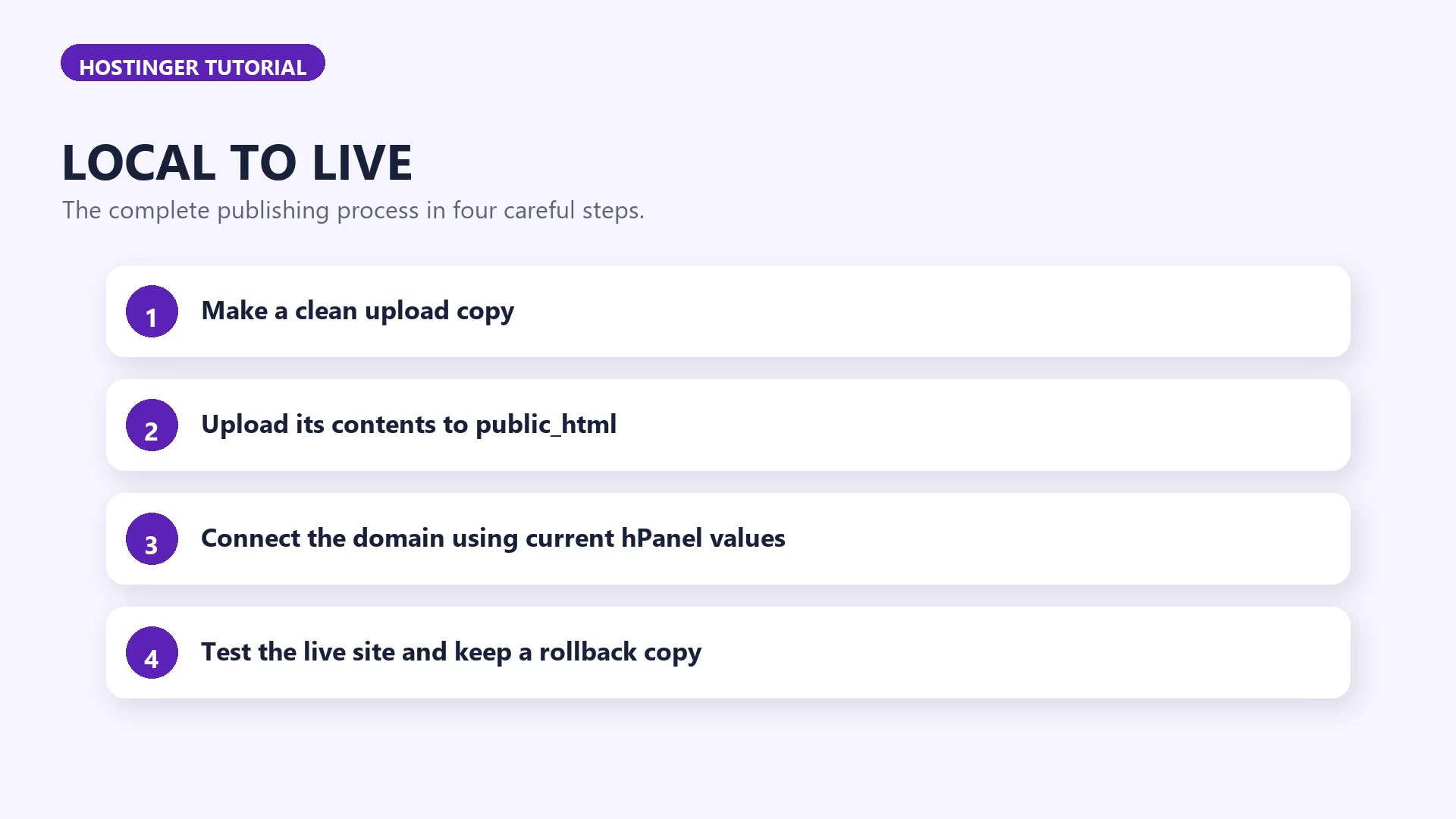
Check the scope and protect what is already live
This checklist is for
A simple static website with an index.html home page and local image, CSS or JavaScript files.
It does not cover WordPress, Hostinger Website Builder, Hostinger Horizons, Node.js applications or websites that need a database.
Gather these first
The original Claude Code project folder
Space for a separate upload copy
Access to the correct Hostinger hosting plan
Control of the domain or access to its DNS settings
The current DNS records if the domain already uses email
A restorable backup if the domain already has a live website
Choose the situation that applies
New, empty website
I have confirmed that this is the correct new website in Hostinger.
I am not replacing another website.
Existing live website
I have downloaded the current website files or confirmed that a
restorable Hostinger backup is available.I know which previous version I will restore if the new files fail.
I have confirmed that the existing website is not a database-backed
website outside this checklist’s scope.
Pause if you are unsure. An unfamiliar folder is not necessarily empty or safe to replace.
Prepare the upload copy
1. Leave the original project unchanged
Copy the original project folder.
Rename the copy
website-upload-copy.Make every upload change inside the copy.
2. Keep only the files the live page uses
Keep
index.html.Keep every image, stylesheet and script referenced by the page.
Keep the same subfolder structure used by the working local preview.
Leave project briefs, planning notes, editing instructions and unused
files offline.Confirm that no passwords, access details, private client information or
unrelated files are in the upload copy.
The tutorial’s demonstration uses:
index.html
career-coach-photo.JPG
happy workspace.jpg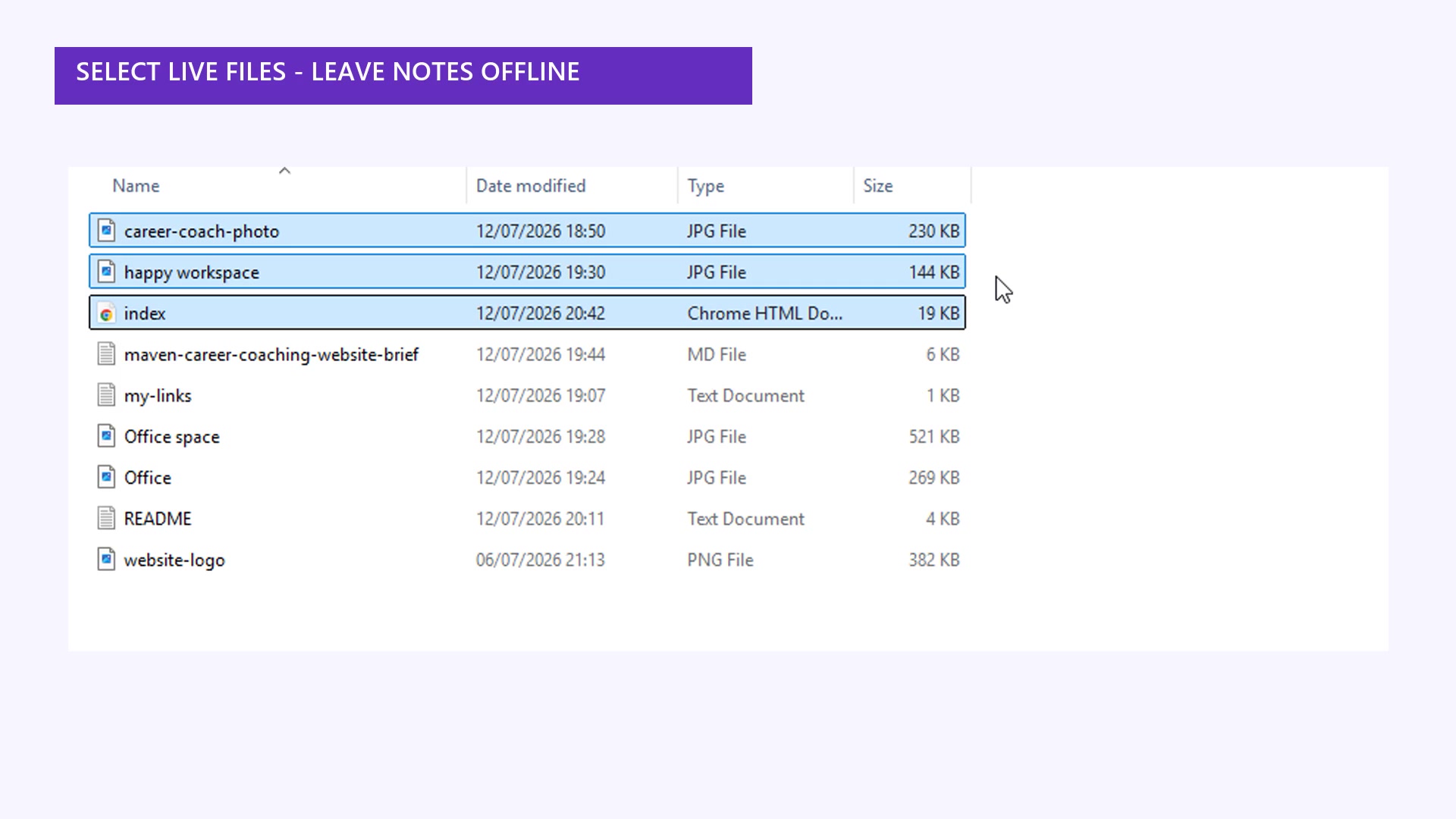
3. Check hidden items
If the prepared website already uses
.htaccess, keep it.Do not create
.htaccessmerely because the tutorial mentions it.Exclude the hidden
.gitfolder if one exists.
4. Check the folder layer
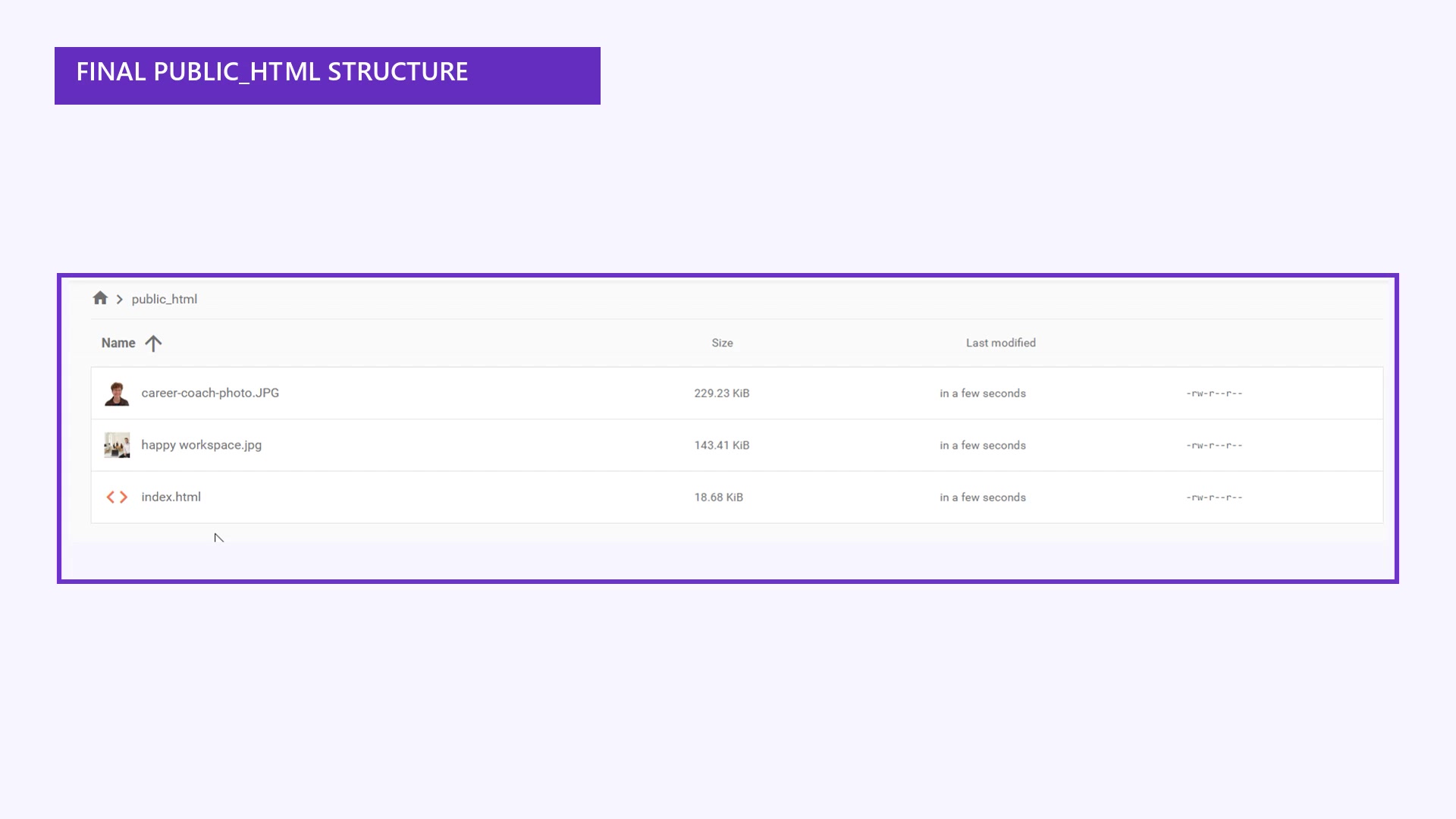
Open website-upload-copy and upload the files and folders inside it.
Correct:
public_html/index.htmlAvoid:
public_html/website-upload-copy/index.htmlUpload the contents to Hostinger
1. Add or open the correct website
In hPanel, go to Websites.
If the current hosting plan shows an available website slot, use
Add website under that plan.For this prepared static site, choose Custom PHP/HTML website.
Use the current hPanel wording to choose the correct domain, subdomain or
temporary domain.
Hostinger’s options vary by plan. If you need a new plan, check the current
regional comparison and confirm that it supports Custom PHP/HTML website
and File Manager. Check the total payable today and the renewal price before
buying.
2. Open File Manager
Go to Websites → Dashboard → File Manager.
Confirm that the selected domain is the one you intend to publish.
Open its
public_htmlfolder.If files are already present, identify them and make a restorable backup
before changing anything.
3. Upload the hand-off contents
Open the local
website-upload-copy.Select the website files and folders inside it.
Include
.htaccessonly when it belongs to this prepared website.Confirm that
.gitis not selected.On a confirmed new, empty website only, remove Hostinger’s current
placeholder file,default.php.If any other existing files are present, stop and identify them instead
of deleting them.In the open
public_htmlfolder, choose Upload.Wait until every file has uploaded.
Confirm that
index.htmlsits directly insidepublic_html.Confirm that every referenced image, stylesheet and script is present.
Connect the domain without disrupting email
Use Hostinger’s current connection guide
Return to Websites.
Open Check guide, Connect domain or the current equivalent beside
this website.Use only the nameservers or IP addresses shown in your own hPanel.
Confirm that the domain is active and that you can edit its DNS settings.
Check the current DNSSEC instruction. If DNSSEC is unfamiliar, use your
registrar’s instructions or ask support instead of guessing.
If the domain is in the same Hostinger account and already uses Hostinger nameservers, hPanel may connect it without manual DNS changes.
If the domain uses another provider
Nameserver route
I want Hostinger to manage the domain’s DNS records.
I have saved the existing DNS records first.
If email stays with another provider, I will restore or update its MX,
SPF, DKIM and DMARC records after the change.
A-record route
I want to keep DNS management with the current provider.
I am using the exact
@andwwwrecords shown in hPanel.I will change only the A, AAAA or CNAME records Hostinger identifies.
I will leave unrelated records, including existing email records, in
place.
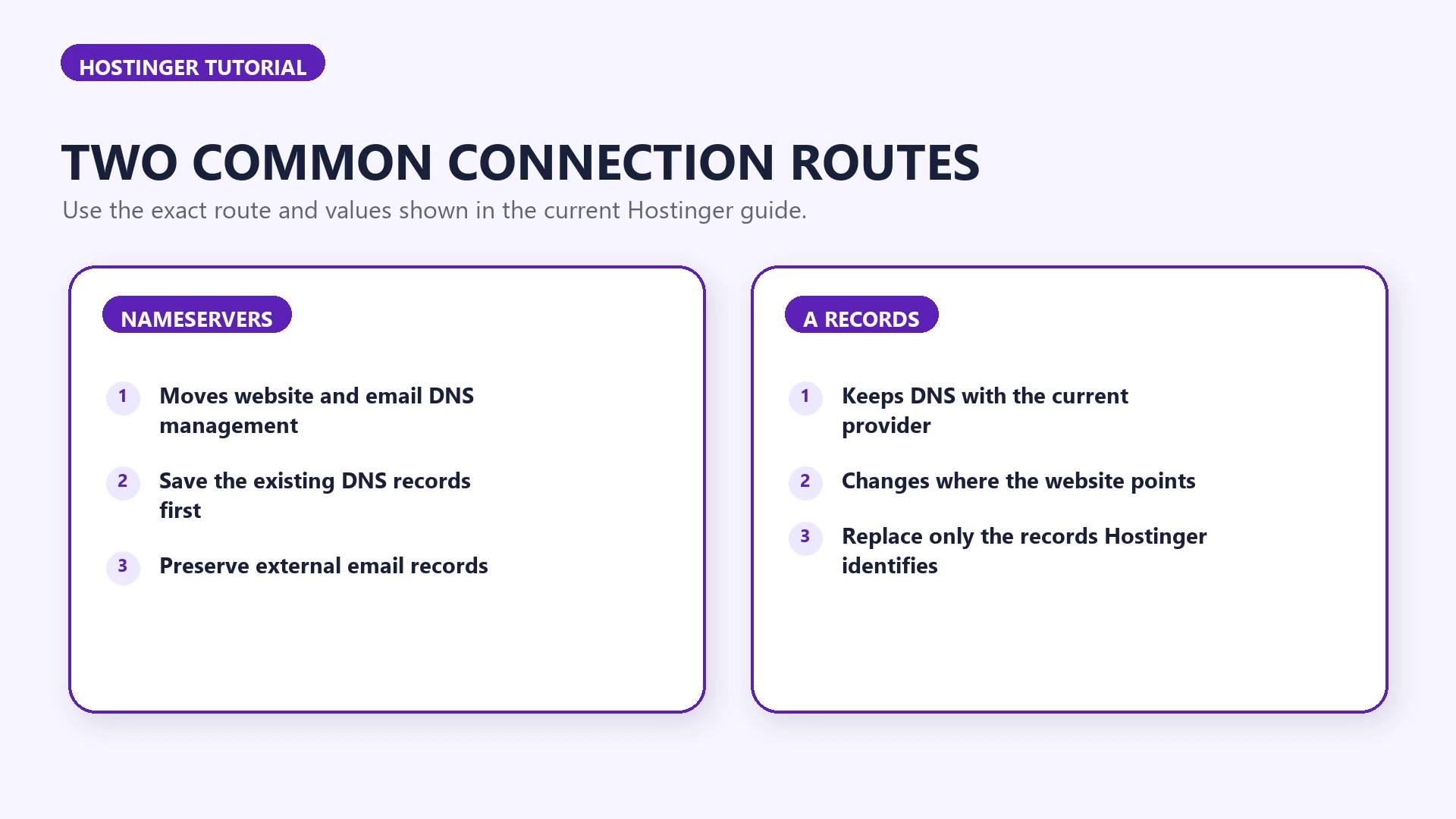
Note: DNS is the record system that tells the internet where the website and email services live. A nameserver change can affect both.
Allow time
Hostinger’s live DNS check detects the new values.
I understand that full DNS propagation can take up to 24 hours.
I will use the temporary domain while waiting, if Hostinger provides one.
Test the live website and keep a rollback route
Run the live checks
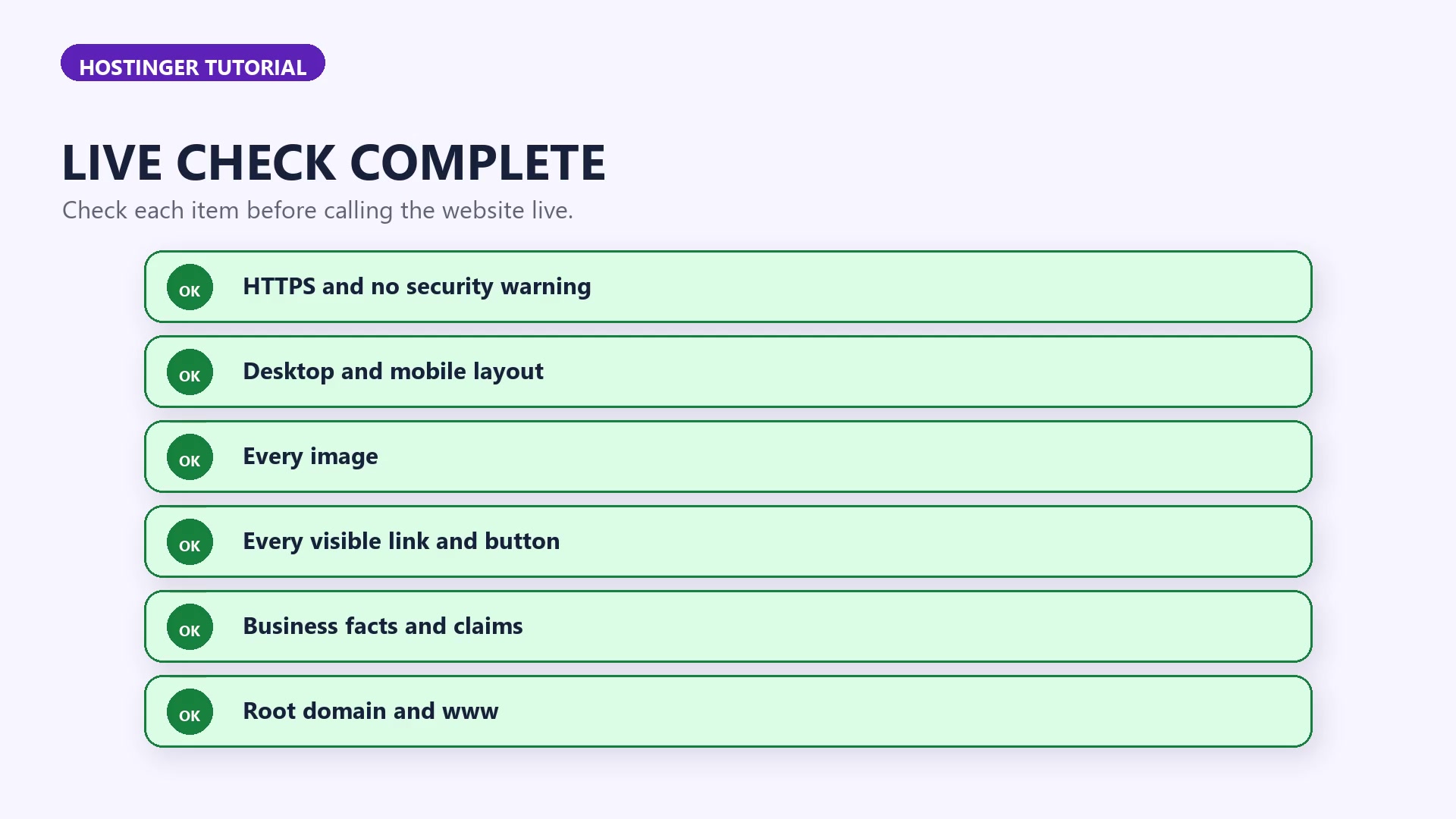
In hPanel, go to Websites → Dashboard → Security → SSL and confirm that the certificate status beside the domain is Active.
In a private or incognito window, open the full
https://address. Confirm that the expected current page loads and the browser shows no security warning.At desktop width, confirm that the headline, navigation, images and buttons display correctly.
Click every visible link and button and confirm that it opens the intended destination.
Check the website on a real phone. If a phone is unavailable, use a narrow browser window as an initial check.
Confirm that the business name, services, contact details and claims are accurate.
Test both the root domain and the
wwwversion. Confirm that the preferred address loads and that the other version redirects correctly, if both are configured.Optional: Save one screenshot of the working desktop view and one of the working mobile view as a launch record.
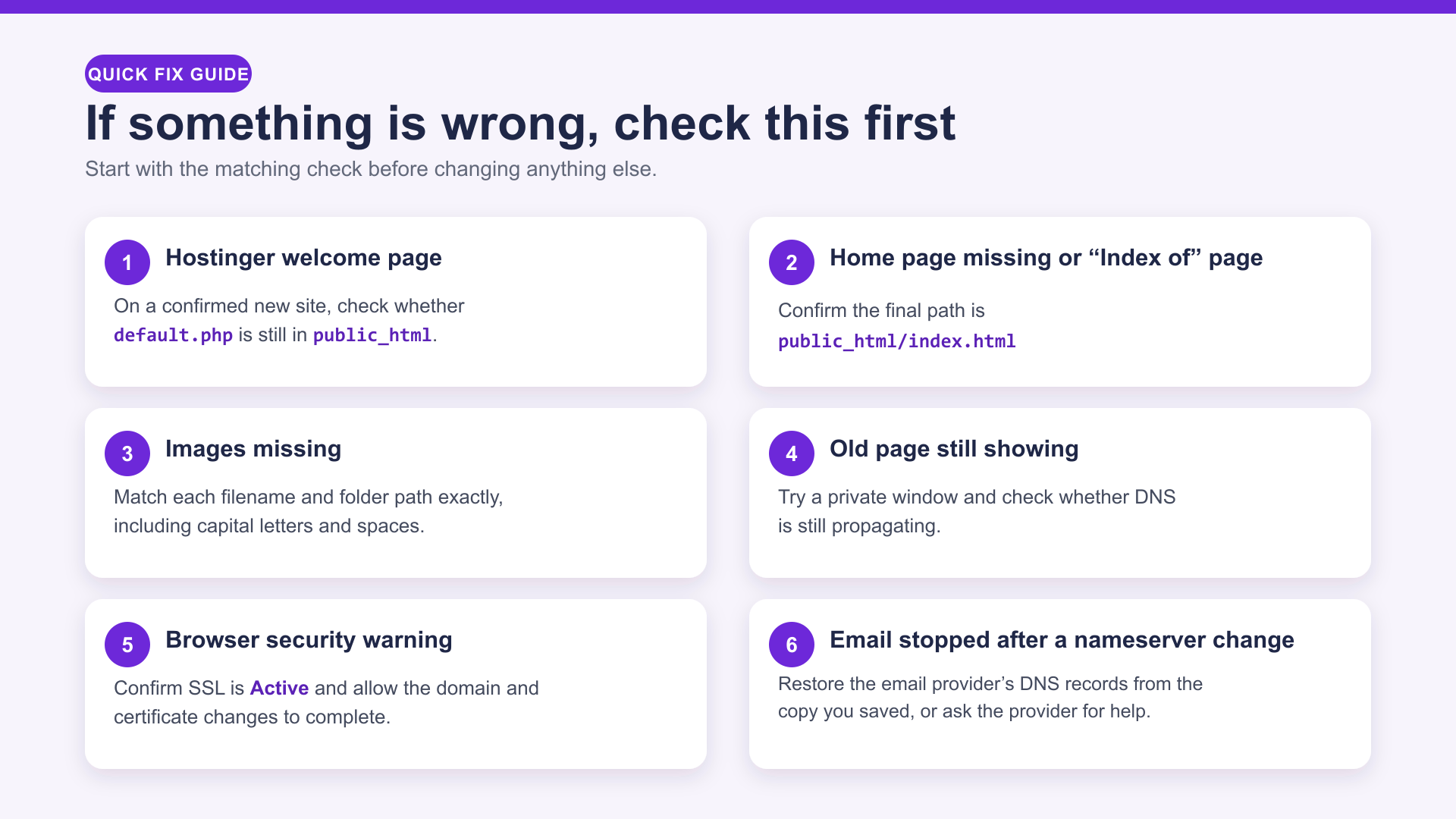
If something is wrong, check this first
Keep the rollback copies
Keep the unchanged original Claude Code project.
Keep the clean
website-upload-copy.Keep the pre-launch website backup until the new site is stable and a
current backup exists.If a website-file change fails, restore the known-good Hostinger backup
or re-upload the previous clean copy.Re-run the HTTPS, desktop, mobile, image, link and fact checks after a
rollback.
 Powered By LeadCreator